
Are you feeling overwhelmed by the endless stream of tasks, ideas, and commitments vying for your attention? You are not alone. In today’s fast-paced world, keeping track of everything can feel like a full-time job in itself. Fortunately, there is a solution that combines simplicity with visual appeal: Trello for personal productivity.
Trello for personal productivity has transformed how countless individuals organize their daily lives, manage long-term goals, and reduce mental clutter. This powerful yet intuitive tool, based on the Kanban method, offers a flexible framework that adapts to your unique needs . For a broader look at how to boost your overall output, you might also enjoy our guide to boost your productivity like a pro.
Whether you are a busy professional juggling multiple projects, a student tracking assignments, or someone simply trying to remember grocery lists and appointments, this complete guide will show you how to harness the full potential of Trello for personal productivity. We will walk through everything from basic setup to advanced features, ensuring you can create a system that works specifically for you .
By the end of this article, you will understand why so many people rely on this visual task manager and how you can use it to bring order to your personal and professional life. Let us dive in and discover how Trello for personal productivity can change the way you work.
What is Trello and Why It Works for Personal Productivity
Before we explore the specifics of using Trello for personal productivity, let us understand what makes this tool so effective. Trello is a collaborative task and project management application based on the Kanban method, which originated in Japanese manufacturing as a way to visualize workflow . If you are interested in other digital tools, you can compare it to options in our guide on what is Notion and how to use it.
The Core Components
At its heart, Trello consists of three simple elements:
- Boards: These represent your main projects or areas of focus. Think of a board as a digital whiteboard dedicated to a specific purpose, such as “Personal Tasks,” “Home Renovation,” or “Fitness Goals” .
- Lists: Within each board, you create lists that represent stages or categories. A basic productivity setup might include lists like “To-Do,” “Doing,” and “Done” .
- Cards: These are individual tasks or items. Each card can hold a wealth of information, including descriptions, due dates, checklists, attachments, and comments .
Why Trello Excels for Personal Use
Trello for personal productivity works exceptionally well because it taps into our brain’s natural preference for visual organization. When you can see all your tasks laid out before you, moving them through stages of completion, you gain a sense of progress and control .This feeling of progress is closely tied to the power of small wins, which can be a massive motivator.
Research supports this approach. A survey of 6,000 professionals revealed that an overwhelming 89% believe that teammates who organize their tasks are the most productive. Additionally, 70% of knowledge workers would rather cross an item off their list than receive praise from a coworker . The satisfaction of moving a card to the “Done” column is real and motivating.
Unlike complex enterprise software, Trello for personal productivity requires minimal learning curve. You can begin with the basics and gradually introduce more advanced elements as your confidence grows . This flexibility makes it ideal for managing everything from daily errands to long-term life goals. exploring the origins of Kanban can be very insightful.
Getting Started: Setting Up Your Personal Trello Workspace
Ready to begin your journey with Trello for personal productivity? Let us walk through the initial setup process step by step.
Creating Your Account
Getting started is straightforward and free. Visit Trello’s website or download the mobile app from your device’s app store. Creating an account takes just minutes, and the free version offers plenty of functionality for personal use .
Trello’s free tier allows you to create up to ten boards, add file attachments up to 10MB, and use unlimited Power-Ups on each board. For most individuals, this is more than sufficient .
Understanding the Interface
After signing in, spend some time exploring the dashboard and its features. The main dashboard shows your workspaces and boards. The navigation bar helps you switch between boards, access your Inbox, and view your Planner .
Trello works seamlessly across all your devices. You can access it through web browsers on your computer or download dedicated apps for Windows, Mac, iOS, and Android. The mobile apps are particularly useful for capturing tasks on the go or checking your lists while out and about .
Setting Up Your First Board
To create your first board, simply click the “Create new board” button. Give it a meaningful name—something like “Personal Productivity” or “My Life Organizer” works well .
Your board is now ready for customization. The next section will guide you through designing a board that truly supports your productivity.
Designing Your Personal Productivity Board
The beauty of Trello for personal productivity lies in its adaptability. Your board should reflect how you think and work. Here is how to design a system that works for you.
Choosing Your List Structure
The lists you create form the backbone of your workflow. While the classic “To-Do, Doing, Done” structure is effective, you might need something more nuanced .
Consider these list options for personal use:
- Brain Dump or Inbox: A place to capture every thought, idea, or task as it occurs. This list prevents mental clutter and ensures nothing gets forgotten .
- Today: Tasks you commit to completing on the current day. Limiting this list prevents overwhelm and promotes focus.
- This Week: Items you plan to tackle in the coming days but aren’t urgent for today.
- In Progress: Tasks you are actively working on. Keeping this list short helps maintain focus .
- Waiting: Tasks that require input from others or depend on external factors before you can proceed .
- Done: Completed tasks. The satisfaction of populating this list cannot be overstated .
Using a structure like this is a form of time management made simple, as it visually organizes your commitments.
Adding Your First Tasks
With your lists established, start populating your board with cards.Keep one practical task on each card to stay organized. Instead of a vague card titled “Home improvement,” break it down into specific cards like “Research paint colors for bedroom” and “Order new light fixtures” .
As you add cards, keep these principles in mind:
- Be specific with task names
- Add due dates for time-sensitive items
- Use descriptions to capture important details
- Attach relevant files or links immediately
Mastering Trello Cards for Detailed Task Management
Cards are where the real power of Trello for personal productivity emerges. Each card is like a digital folder containing everything related to a specific task .
Essential Card Elements
When you open a card, you will find several sections that help you add depth to your tasks:
The Description Field: Use this space to provide context, outline requirements, or note important details. Markdown formatting is supported, allowing you to create structured, readable descriptions .
Checklists: For tasks with multiple steps, checklists are invaluable. Breaking down complex tasks into smaller, checkable items makes them less daunting and provides a clear path forward. You can even track your progress with automatic progress bars .
Due Dates: Setting deadlines helps prioritize your work. When you add a due date, Trello can send reminders, ensuring nothing slips through the cracks .To set these deadlines effectively, it helps to understand what are SMART goals.
Attachments: Attach files from your computer, Google Drive, Dropbox, or Box. Photos, documents, and spreadsheets can all live within the relevant card, creating a central repository for task-related materials .
Comments: Use comments to add notes, ask yourself questions, or record progress updates. This creates a helpful audit trail of your thinking and actions .
Using Labels Effectively
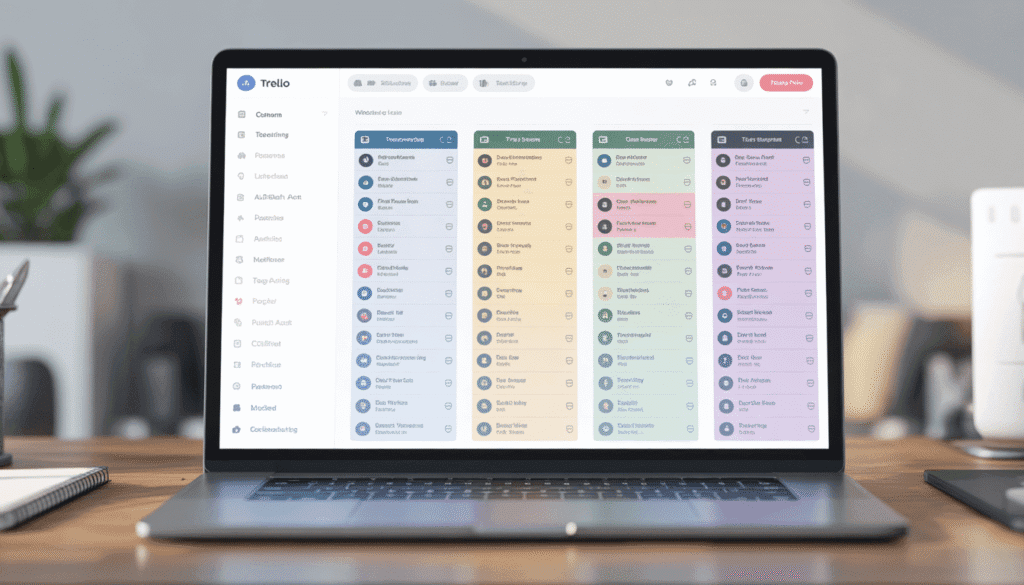
Labels are color-coded tags that help you categorize and filter cards at a glance. For personal productivity, consider creating labels for:
- Priority levels (Urgent, High, Medium, Low)
- Context or energy required (Focus, Quick Win, Errand, Creative)
- Life areas (Work, Health, Family, Finance, Learning)
With a well-planned labeling system, you can instantly see the composition of your tasks and filter to focus on what matters most right now.
Essential Trello Features for Personal Organization
Beyond the basics, Trello offers several features that enhance Trello for personal productivity. Let us explore the ones most valuable for individual users.
Calendar View
The Calendar Power-Up transforms your board by displaying cards with due dates on a calendar. This perspective is invaluable for visualizing your month, spotting busy periods, and ensuring balanced workloads .
With calendar view, you can drag and drop cards to reschedule tasks, making it easy to adjust your plans as priorities shift .This is a practical application of what is time blocking.
Custom Fields
Sometimes, basic card information is not enough. The Custom Fields Power-Up allows you to add structured data to your cards. You might create fields for:
These fields enable more sophisticated filtering and sorting, helping you make strategic decisions about what to tackle when.
Mirroring Cards
If a task belongs in multiple contexts, the card mirroring feature is a game-changer. You can now mirror a card so it appears exactly the same in other boards you control. Edit the card anywhere, and changes are reflected everywhere it appears .
For example, a “Buy birthday gift” card might belong on both your “Personal Tasks” board and your “Family Events” board. Mirroring keeps everything synchronized without duplication.
Saved Searches
As your board grows, finding specific cards can become challenging. Saved searches allow you to create and reuse filters based on labels, members, due dates, or keywords. This feature ensures you can always quickly access exactly what you need
Advanced Strategies: Power-Ups and Automation
Once you have mastered the basics, it is time to explore how Trello for personal productivity can become even more powerful through add-ons and automation.
Essential Power-Ups for Personal Use
Power-Ups are integrations and features that extend Trello’s functionality. Here are some particularly useful ones for personal productivity:
Calendar Power-Up: As mentioned earlier, this provides a timeline view of all your dated tasks, helping you plan ahead effectively .
Card Aging: This clever Power-Up visually indicates how long a card has been inactive. Cards gradually fade or develop a “torn edge” look when untouched, drawing your attention to stalled tasks that might need review .
Table View: If you prefer spreadsheet-style organization, Table View displays all your cards in a grid format, making data analysis and bulk editing easier .
Automating with Butler
Butler is Trello’s built-in automation tool, and it is surprisingly powerful for personal use. You can create rules, buttons, and scheduled commands that handle repetitive tasks automatically .
Consider these automation ideas:
- Automatically move cards to the “Done” list when their checklist is complete
- Add a “High Priority” label to cards with due dates within 48 hours
- Create recurring cards for weekly chores like “Take out recycling” or “Water plants”
- Archive cards that have been in the “Done” list for more than a week
Each automation saves a small amount of mental energy, freeing you to focus on actual work rather than task management.This frees you up to focus on high-impact activities, much like the principles discussed in how to improve workplace efficiency and maximize productivity.
Integrations with Other Apps
Trello plays well with others. Connecting it to your existing digital ecosystem can streamline your workflows significantly .
- Google Calendar: Sync your due dates and see your tasks alongside your appointments . For a deeper dive, see our guide on how to time block.
- Slack: Send cards to Trello directly from Slack messages or receive notifications about board activity .
- Zapier or IFTTT: Create custom automations connecting Trello to hundreds of other apps. For example, save emails as Trello cards automatically or create Trello tasks from voice notes
Creating a Weekly Review Routine
A tool is only as effective as the habits surrounding it. To truly benefit from Trello for personal productivity, establish a regular review routine.
The Importance of Weekly Reviews
Without regular maintenance, even the best-organized board can become cluttered and overwhelming. A weekly review—typically 30-60 minutes each week—keeps your system clean and your priorities clear .
What to Cover in Your Review
During your weekly review, work through these steps:
Process Your Inbox: Move items from your “Brain Dump” or “Inbox” list into appropriate categories. Add due dates, labels, and details as needed .
Review Completed Tasks: Celebrate your progress by reviewing what you accomplished. Archive old cards or move them to a “Completed” list for reference .
Check Upcoming Deadlines: Scan the week ahead and ensure you are prepared for upcoming commitments. Adjust priorities if needed .
Evaluate Your Lists: Are there tasks that have been sitting too long? Should you delete, delegate, or recommit to them? The Card Aging Power-Up makes this step easier . This practice helps you stop procrastinating by forcing you to confront neglected tasks.
Plan the Coming Week: Decide what you want to accomplish and move relevant cards into your “This Week” or “Today” lists.
Adjusting Your System
Your productivity needs will evolve over time. Use your weekly review to reflect on whether your current board structure still serves you. Experiment with different list names, new labels, or additional Power-Ups to keep your system aligned with your goals
Trello Templates for Common Personal Use Cases
Sometimes, the fastest way to implement Trello for personal productivity is to start with a template. Here are several templates you can create for different areas of your life. For more inspiration on templates in general, see our Notion templates guide.
Daily Planner Board
This simple board helps you manage day-to-day tasks:
- Lists: Brain Dump, Today, In Progress, Done
- Use for: Daily to-dos, errands, appointments, and quick tasks
Weekly Work Tasks Board
Perfect for time-blocking your professional responsibilities:
- Lists: Monday, Tuesday, Wednesday, Thursday, Friday, Next Week
- Use for: Work assignments, meetings preparation, project tasks
Habit Tracker Board
Monitor your personal development goals:
- Lists: Daily Habits, Weekly Habits, Monthly Habits, Completed
- Cards: Each habit gets its own card with a checklist for tracking
- Use for: Exercise, reading, meditation, learning
To learn more about building lasting routines, read our guide on how to build good habits fast.
Goal Setting Board
Track progress toward meaningful objectives:
- Lists: Annual Goals, Quarterly Goals, Monthly Goals, In Progress, Achieved
- Use for: Career milestones, fitness targets, financial goals, learning objectives
- For help defining these objectives, check out how to create a SMART goal
Home Management Board
Keep your household running smoothly:
- Lists: Chores, Repairs, Shopping, Meal Planning, Completed
- Use for: Cleaning schedules, maintenance tasks, grocery lists, home improvements
Event Planning Board
Organize personal events from conception to completion:
- Lists: Ideas, To-Do, In Progress, Waiting, Done
- Cards: Venue research, guest list, invitations, menu planning, decorations
- Use for: Parties, vacations, weddings, family gatherings
Tips and Best Practices for Long-Term Success
To make Trello for personal productivity a lasting habit rather than a temporary experiment, follow these best practices.
Start Simple
One common mistake is creating an overly complex system from day one. Begin with basic lists and gradually add features as you identify needs. This approach prevents overwhelm and ensures your system evolves organically .
Be Consistent
The real power of any productivity system comes from consistent use. Make it a habit to check your Trello boards daily. Add tasks as they arise rather than trusting your memory. Review your board each morning to set priorities for the day .A strong morning routine for success can include a quick scan of your Trello board.
Limit Work in Progress
Implement a self-imposed limit on how many cards can be in your “In Progress” list at once. This practice, borrowed from Kanban methodology, prevents multitasking and helps you complete tasks before starting new ones .This requires the discipline discussed in how to build self-discipline.
Use Visual Cues
Take advantage of Trello’s visual nature. Use cover images on important cards, color-code labels consistently, and add emojis to list titles for quick recognition. These visual elements make your board more engaging and easier to scan .
Archive, Don’t Delete
When you complete tasks, archive the cards rather than deleting them. This preserves your history for future reference while keeping your active board clean. You can always search for archived items if needed .
Keep Cards Mobile-Friendly
Since you will likely access Trello on your phone, ensure your cards are easy to interact with on smaller screens. Use clear titles, avoid excessively long descriptions, and test your most common actions on mobile .
Experiment Freely
Do not be afraid to change your system. If a particular list structure is not working, try something new. If a label color feels wrong, change it. Your productivity system should serve you, not the other way around . Embracing this flexibility can help you shift your mindset for success.
Conclusion
As we have seen throughout this guide, Trello for personal productivity offers a flexible, visual, and powerful approach to organizing your life. From its humble beginnings as a Kanban-based task manager, Trello has evolved into a comprehensive platform capable of handling everything from daily to-dos to long-term life goals .It is one of many tools you can use, and you might find it useful to compare it to others in our article on what is trello.
The true beauty of Trello for personal productivity lies in its adaptability. Whether you prefer a simple to-do list, a complex goal-tracking system, or something in between, Trello molds itself to your needs. You can start with a basic board and gradually incorporate advanced features like Power-Ups, automation, and integrations as you become more comfortable .
Remember that no tool alone creates productivity. The magic happens when you combine Trello for personal productivity with consistent habits and regular review. By making Trello a part of your daily routine, you free your mind from the burden of remembering every task and detail. This mental clarity allows you to focus on what truly matters: doing the work, achieving your goals, and living a more organized, fulfilling life .
So why wait? Create your first board today. Start simple, experiment often, and discover how Trello for personal productivity can transform the way you work and live. Your future organized self will thank you.